Special · Claude Code 101
Claude Code from zero: build your first local app
Install Claude Desktop, open Code, choose an empty folder, and build your first local app with ready prompts and no CLI.
10 slides · October 4, 2026
-
GPT Image visual
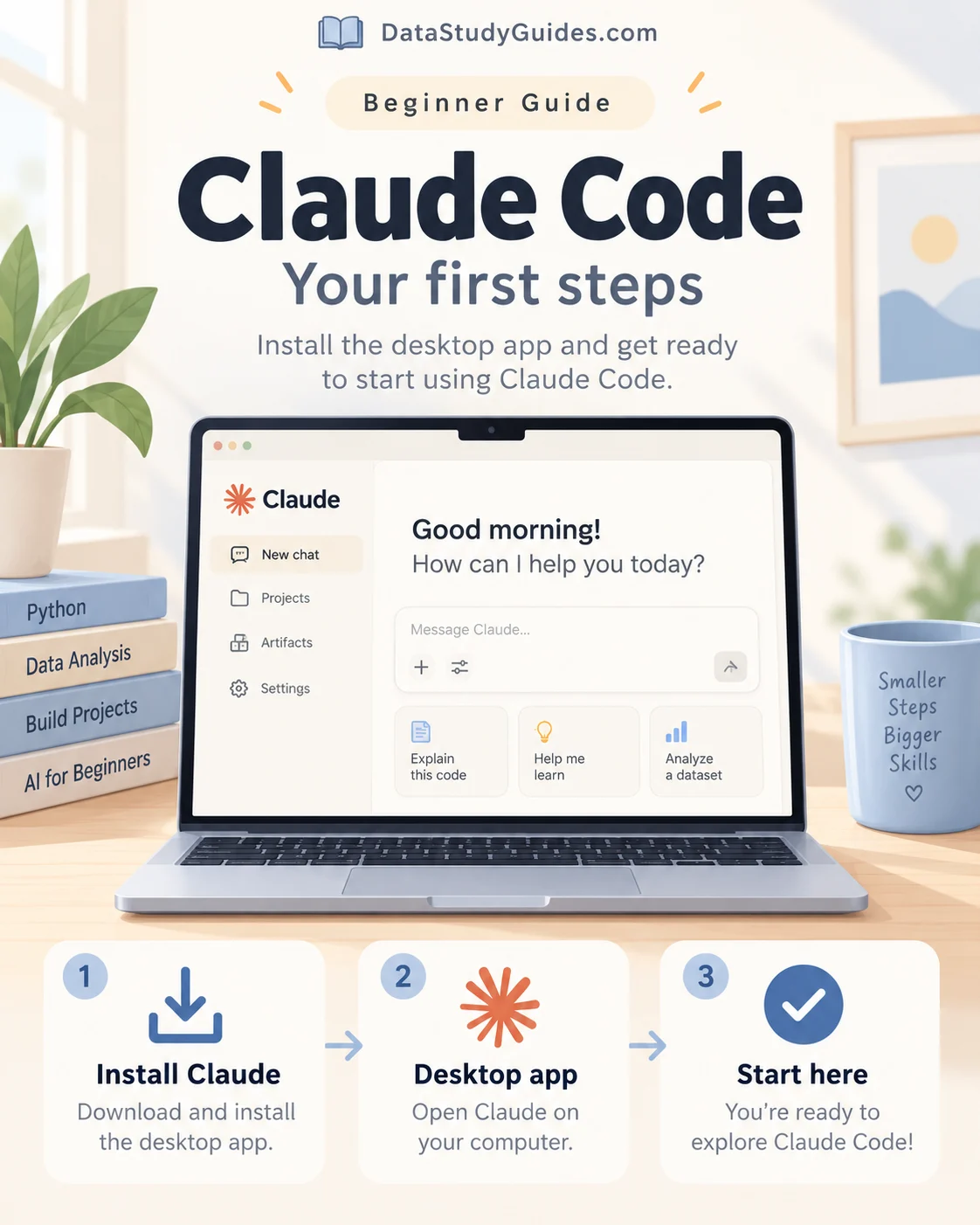
01 StartInstall Claude Desktop
Download the normal Claude desktop app for Windows or macOS, install it, then sign in.
Download Claude ↗ -
GPT Image visual
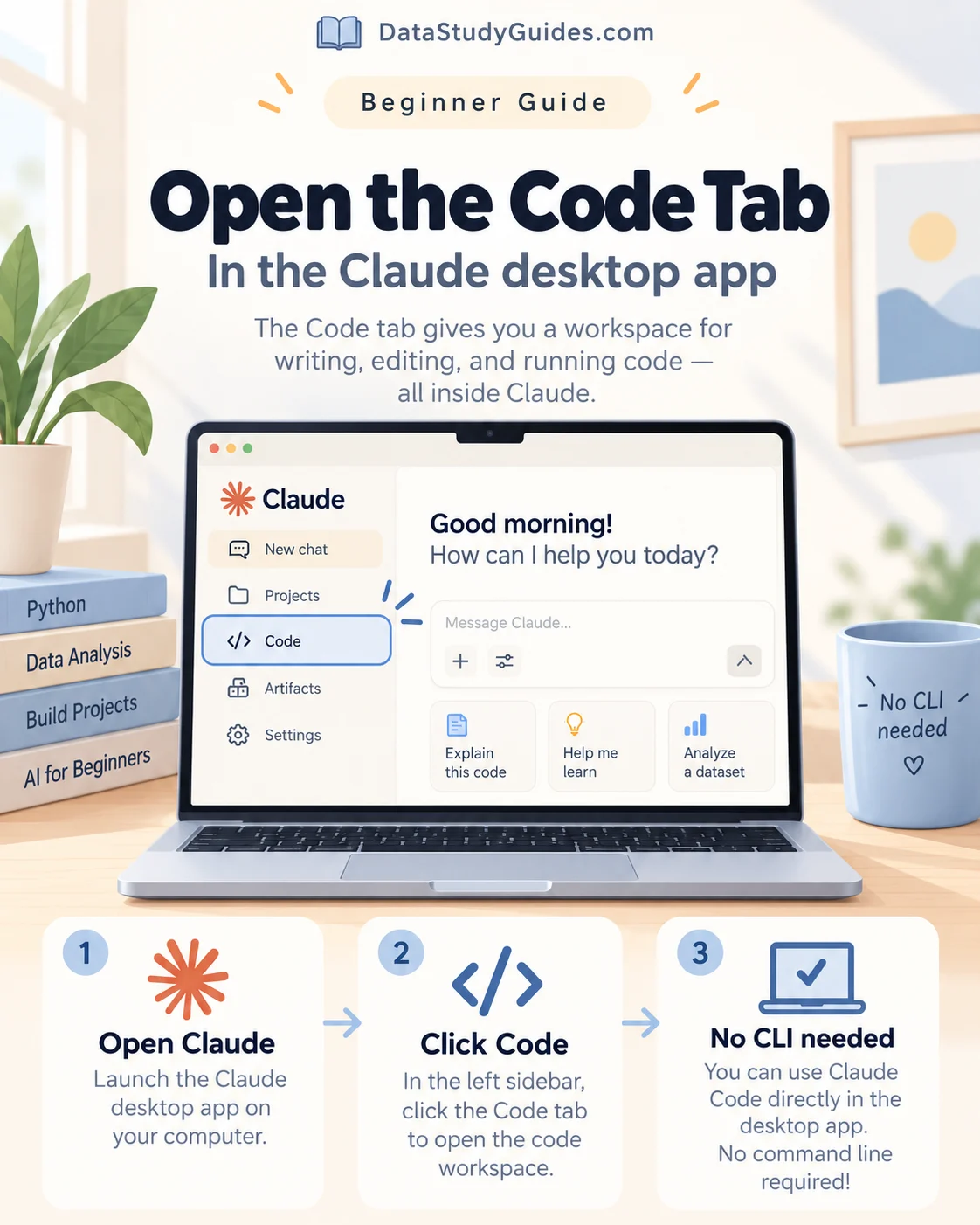
02 EasyOpen the Code tab
Click Code at the top of Claude. Claude Code is built into Desktop, so you do not need Node.js or a separate CLI install.
Claude Code desktop quickstart ↗ -
GPT Image visual
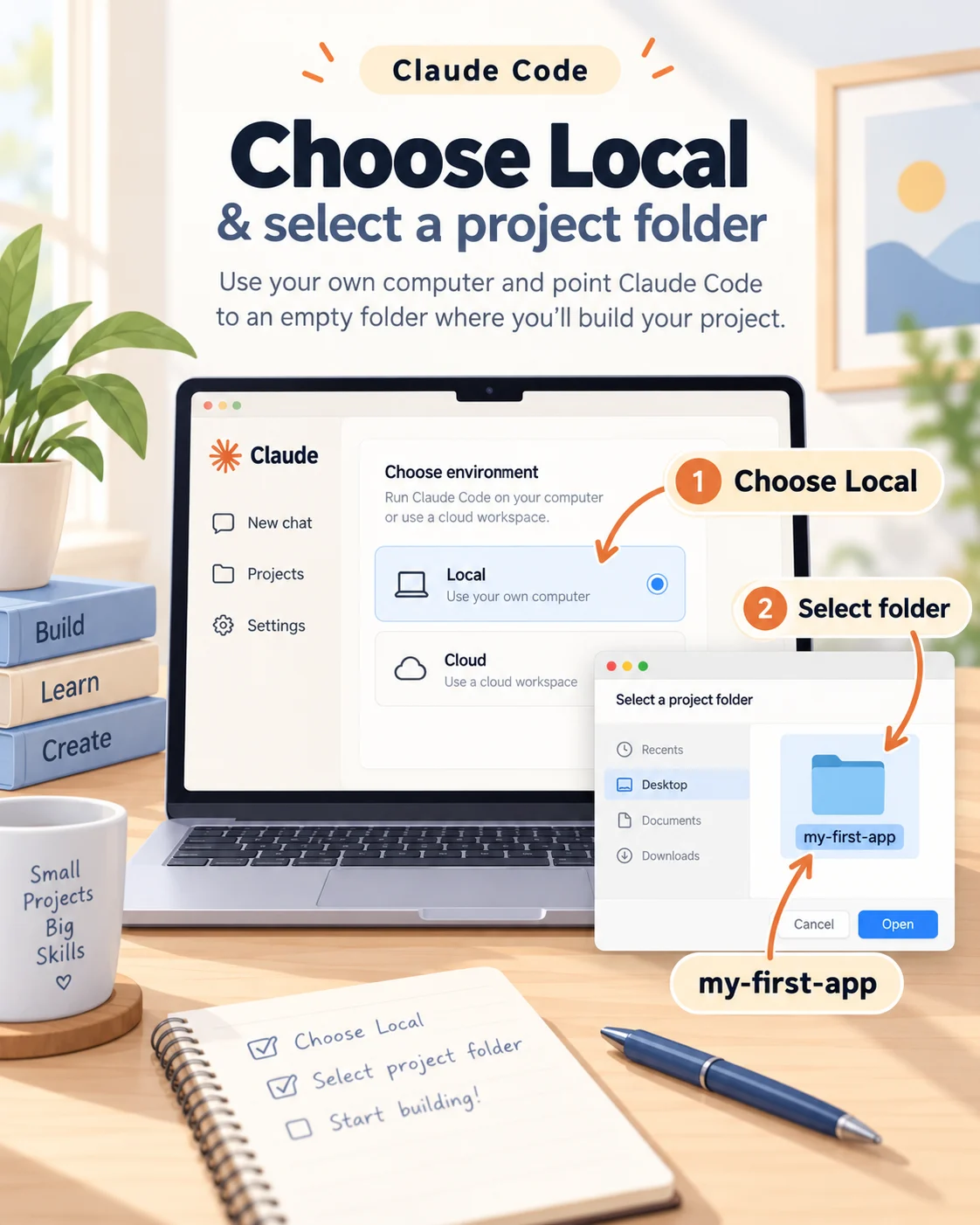
03 SetupChoose Local
Select Local, click Select folder, create an empty folder called my-first-app, and open it.
Claude Code desktop quickstart ↗ -
GPT Image visual
04 ModelPick Opus 5.5
Use the model dropdown next to Send and select Opus 5.5 when it is available on your Claude plan.
Claude Code desktop quickstart ↗ -
GPT Image visual
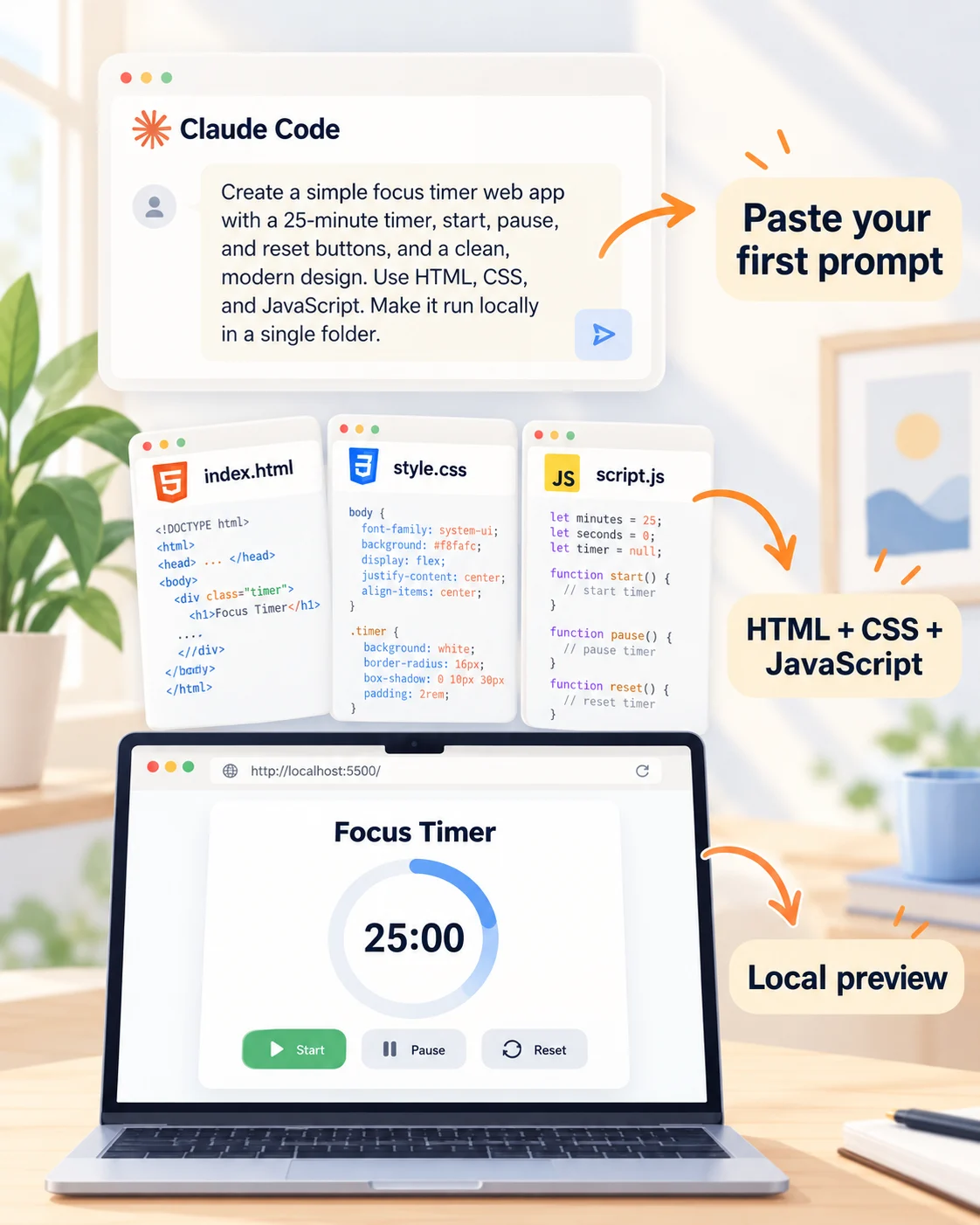
05 Paste in ClaudePaste your first prompt
Start with one clear request.
Claude Code desktop quickstart ↗Paste into chat with Claude CodeBuild a polished focus timer with HTML, CSS and JavaScript. Start from this empty folder, run it locally and open the preview.
-
GPT Image visual
06 MagicWatch the app appear
Claude creates the files and can start the local dev server. The running app opens in the Browser pane inside Claude Desktop.
Preview your app with Claude Code ↗ -
GPT Image visual
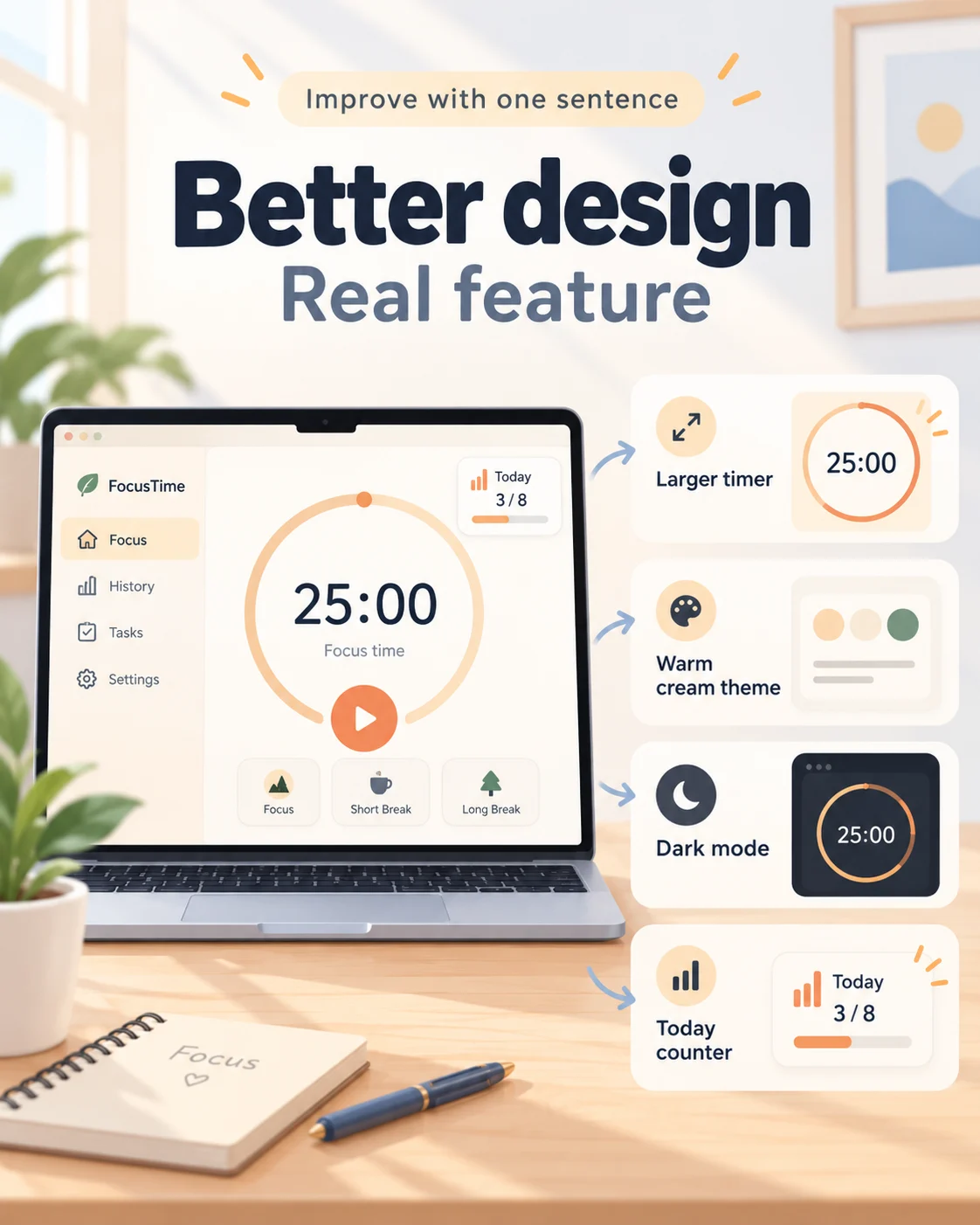
07 Paste in ClaudeImprove it with one sentence
You still do not need to edit code yourself.
Claude Code desktop quickstart ↗Paste into chat with Claude CodeMake it premium: warm cream background, bigger timer, 25/5/15 presets, dark mode and a subtle finish animation.
-
GPT Image visual
08 Paste in ClaudeAdd a real feature
Now change behavior, not just style.
Claude Code desktop quickstart ↗Paste into chat with Claude CodeRemember completed focus sessions, show today's count, and keep it after I refresh the app.
-
GPT Image visual
09 Paste in ClaudeLet Claude check it
Finish with a simple quality check.
Claude Code best practices ↗Paste into chat with Claude CodeTest the main interactions, fix anything broken, and tell me exactly what you verified.
-
GPT Image visual
10 DoneYou built your first app
Claude Desktop -> Code -> Local folder -> prompt -> preview -> improve. That is enough to build your first working local app.
Claude Code desktop quickstart ↗