PL-300 · 3.3.4 · Visualize and analyze the data
Reference lines, error bars, forecasting
Use reference lines, error bars, and forecasting
The adds , , and when supported by the selected visual.
Open the Analytics pane
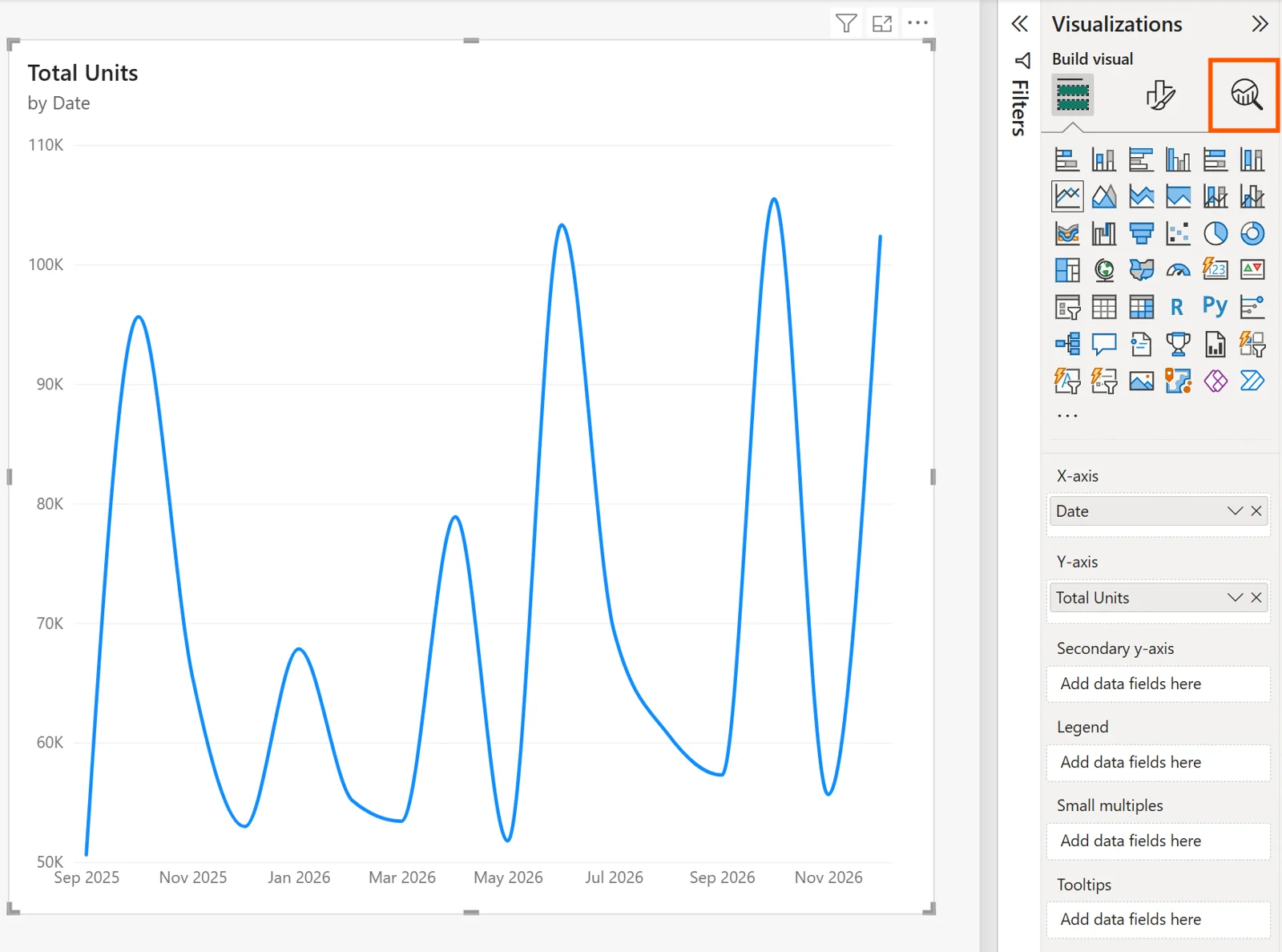
The exposes analytical overlays supported by the selected visual. Available options vary with the visual type.
Match the overlay to the question
| Need | Feature |
|---|---|
| Show a benchmark or average | |
| Show uncertainty around observed values | |
| Estimate future time-series values | |
| Flag unexpected time-series points |
Forecast future values
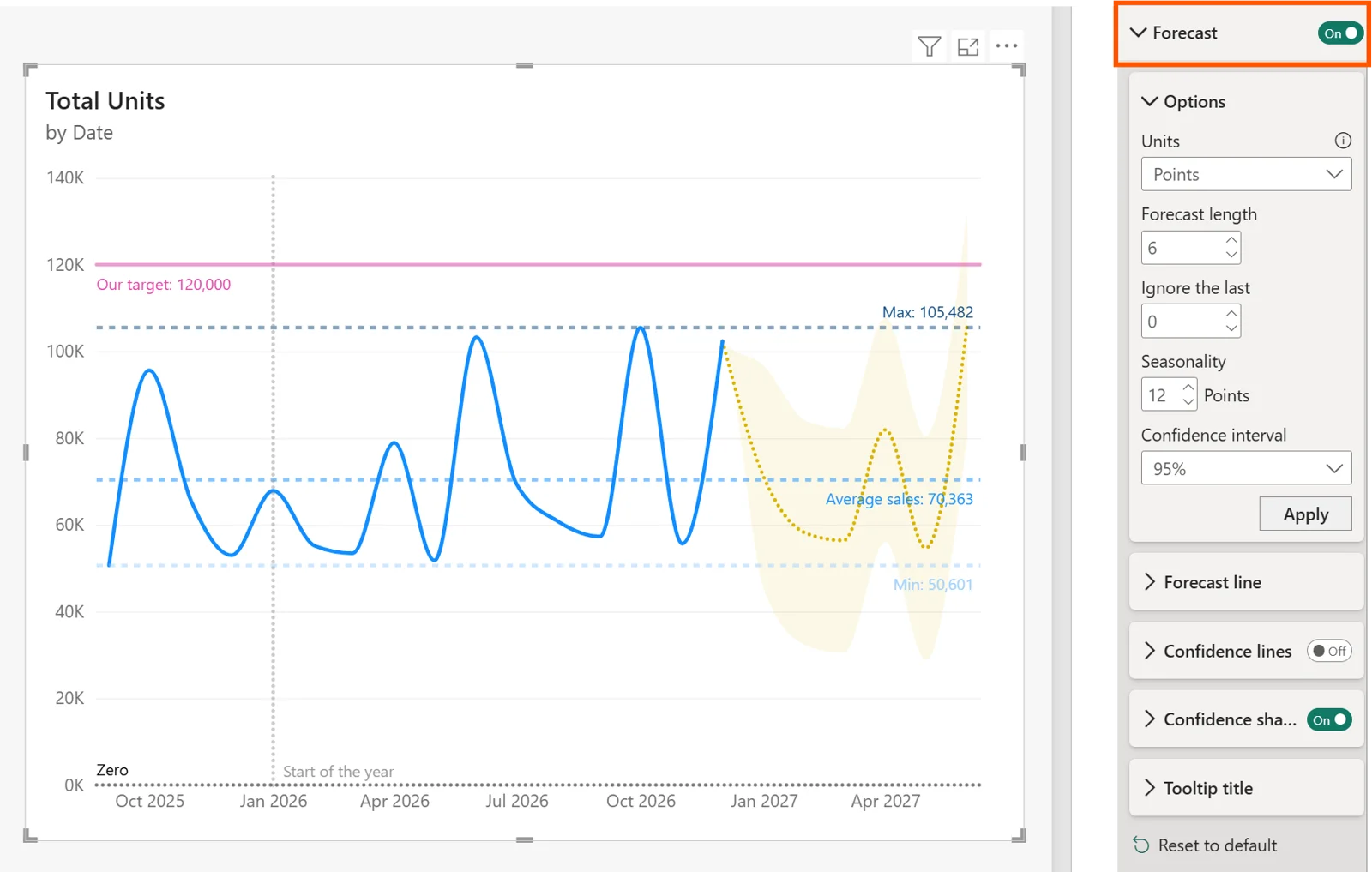
extends a supported time-series line chart and can show a confidence interval. A date field alone does not make forecasting available on every visual.
Exam clue: target/average = ; uncertainty = ; future values = forecast.
Key points
- : constant or measure-derived values
- : show uncertainty or variability
- : available on suitable time-series line charts
- Availability: depends on visual type
Click an underlined term for a one-line explanation, or see them all in the glossary .
Exam trap
is a line-chart capability; a date axis alone does not make it available on other visuals.
Sources · 1 Microsoft Learn page Show ▾
Checked on October 4, 2026. Report a problem
Go deeper on Microsoft Learn
Checked against Microsoft Learn on October 4, 2026. Report a problem with this card