PL-300 · 3.2.3 · Visualize and analyze the data
Edit visual interactions
Edit and configure interactions between visuals
controls whether one visual filters, highlights, or ignores another visual on the page.
Control each visual-to-visual connection
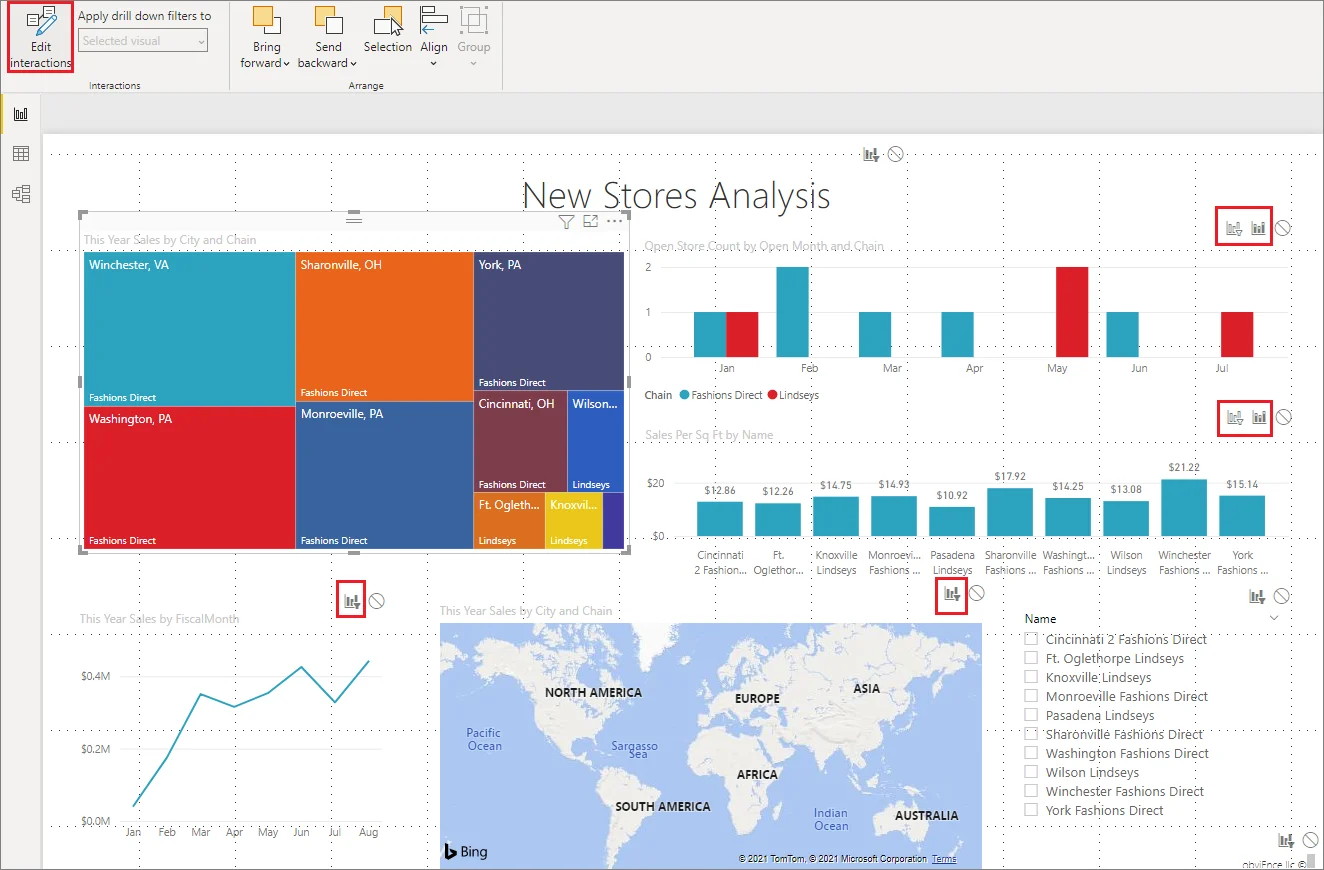
Select the source visual and turn on . Power BI then shows controls on every target visual.
Filter, highlight, or ignore
| Interaction | Result |
|---|---|
| Filter | Nonmatching target data is removed |
| Highlight | Matching data is emphasized while context remains |
| None | The source selection does not affect that target |
are visuals too, so the same feature can stop one slicer from affecting a chosen chart.
Think from the source
Interaction settings belong to the visual doing the filtering, not to the visual you want to protect. If several visuals need different behavior from the same source, configure each target while that source is selected.
Exam clue: choose the source first, then decide how each target should respond.
Key points
- Source visual: drives the interaction
- Filter: restricts target visual data
- Highlight: emphasizes matching target data
- None: prevents the source affecting the target
Click an underlined term for a one-line explanation, or see them all in the glossary .
Exam trap
Configure the interaction from the source visual, not from the target you want to protect.
Sources · 2 Microsoft Learn pages Show ▾
Checked on October 4, 2026. Report a problem
Go deeper on Microsoft Learn
Checked against Microsoft Learn on October 4, 2026. Report a problem with this card