PL-300 · 3.2.9 · Visualize and analyze the data
Configure export settings
Configure export settings
Report export settings control summarized, underlying, or blocked data export, subject to tenant-level restrictions.
Export depth is a security and usability decision
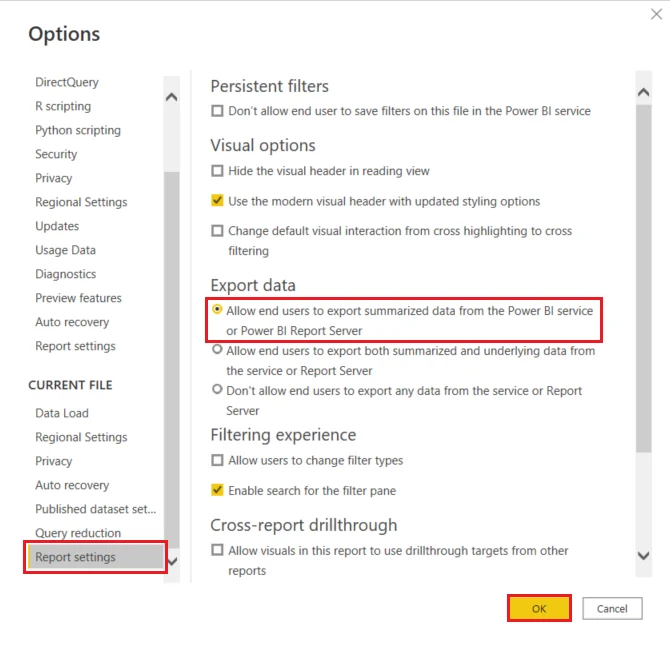
The report author can allow , , or disable export. Tenant settings and user permissions can still be more restrictive.
Summarized versus underlying data
Summarized data follows the visual's fields, filters, and aggregation. Underlying data exposes lower-level model rows behind the visual and can include fields not displayed on the canvas.
That difference matters for both usability and data exposure.
Report settings do not override governance
A report can permit export only within the boundaries allowed by tenant policy, , semantic-model permissions, and security such as .
Hierarchies can also export more levels than are currently expanded in the visual, so visible screen state is not always the full export scope.
Exam clue: what the visual shows = summarized; lower-level model rows = underlying.
Key points
- Report setting: controls allowed export depth
- Summarized data: keeps visual aggregation and filters
- Underlying data: exposes lower-level model rows
- Admin setting: can override report permissions
Click an underlined term for a one-line explanation, or see them all in the glossary .
Exam trap
Allowing export in the report does not override a stricter tenant or permission setting.
Sources · 1 Microsoft Learn page Show ▾
Checked on October 4, 2026. Report a problem
Go deeper on Microsoft Learn
Checked against Microsoft Learn on October 4, 2026. Report a problem with this card