PL-300 · 3.2.7 · Visualize and analyze the data
Group and layer visuals
Group and layer visuals by using the Selection pane
The controls object visibility, grouping, naming, and on a report page.
Manage complex pages from one pane
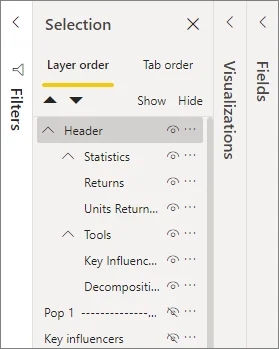
The lists every object on the page. Rename objects so complex pages remain understandable, especially when and accessibility depend on object names.
Control visibility and layers
The eye icon hides or shows an object. Reordering the list changes which overlapping object sits on top. Hidden objects can still influence the report, for example a hidden can continue filtering.
Group related objects
Groups let several visuals, shapes, buttons, or images move and hide together. Groups can also be nested for more complex page designs.
Bookmarks can store object visibility, which makes the Selection pane central to patterns such as tabbed layouts or show/hide panels.
Exam clue: visibility, overlap, grouping, or bookmark-driven panels point to the Selection pane.
Key points
- Eye icon: show or hide objects
- Groups: move and manage visuals together
- : controls which overlapping object is on top
- : can store object visibility
Click an underlined term for a one-line explanation, or see them all in the glossary .
Exam trap
Hidden can still filter the page even though readers cannot see them.
Sources · 2 Microsoft Learn pages Show ▾
Checked on October 4, 2026. Report a problem
Go deeper on Microsoft Learn
Checked against Microsoft Learn on October 4, 2026. Report a problem with this card