PL-300 · 3.2.10 · Visualize and analyze the data
Mobile layout
Design reports for mobile devices
creates a separate phone-friendly arrangement while preserving the standard desktop report layout.
Build a separate phone arrangement
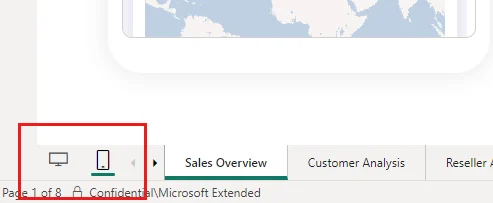
rearranges the same report-page visuals for a portrait phone. It does not create a second report and does not change the normal desktop arrangement.
Choose what earns phone space
The lists every visual from the standard page. Put only the most important visuals on the phone canvas and order them for vertical reading. Large desktop grids often need to become a shorter sequence of focused visuals.
Auto-create versus manual design
Auto-create can generate a starting mobile layout from the desktop page. Use it as a draft, then adjust size, order, and mobile-specific formatting. Running Auto-create again replaces the existing mobile arrangement.
Responsive visual behavior and simplified labels can help small screens, but the and report logic stay the same.
Exam clue: mobile layout changes arrangement and formatting, not the underlying report or model.
Key points
- Mobile canvas: arrange visuals for portrait phones
- Auto-create: replaces the current mobile arrangement
- Formatting: can differ from desktop layout
- Publish: travels with the report
Click an underlined term for a one-line explanation, or see them all in the glossary .
Exam trap
selections made while designing do not become saved report filter selections.
Sources · 4 Microsoft Learn pages Show ▾
- Mobile-optimized Power BI reports overview
- Mobile layout view
- Create an initial layout for mobile
- Best practices for mobile-optimized reports
Checked on October 4, 2026. Report a problem
Go deeper on Microsoft Learn
- Mobile-optimized Power BI reports overview
- Mobile layout view
- Create an initial layout for mobile
- Best practices for mobile-optimized reports
Checked against Microsoft Learn on October 4, 2026. Report a problem with this card