PL-300 · 3.3.1 · Visualize and analyze the data
Analyze feature (explain a change)
Use the Analyze feature in Power BI
Analyze explains changes or distribution differences for selected data points and can add generated insights to reports.
Ask Power BI to explain a change
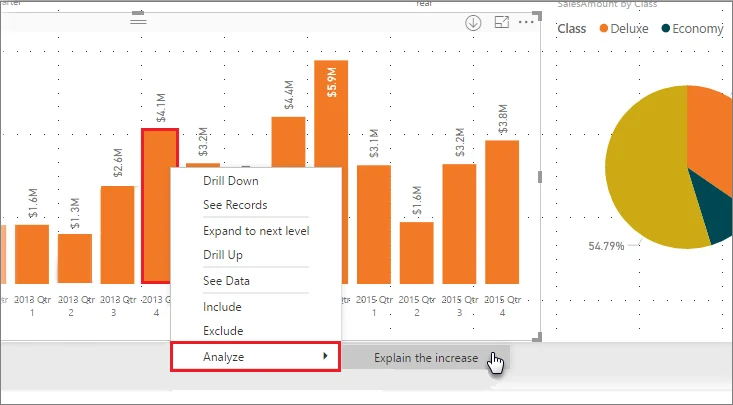
Right-click a supported data point and use Analyze to investigate an increase or decrease, or to find where a distribution differs.
Review the generated explanation
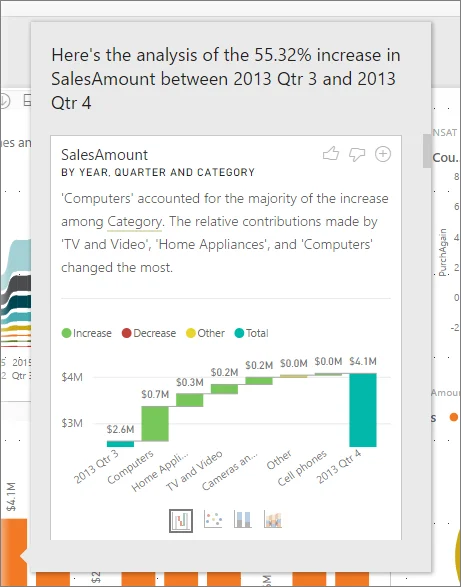
Power BI evaluates other fields and surfaces categories whose contribution changed most. The result can use different visual forms and can be added to the report while editing.
Change analysis is not “largest category”
Explain increase or decrease compares contribution patterns between points. A category can be important because its contribution changed sharply even if it is not the largest absolute category.
Distribution analysis asks a different question: which values make one distribution differ from the overall pattern?
Exam clue: “why did this point change?” plus right-click Analyze points to the .
Key points
- Explain increase or decrease: compares adjacent points
- Distribution analysis: finds fields linked to shape differences
- Generated result: can be added while editing
- Limitations: unsupported with several filter and model scenarios
Click an underlined term for a one-line explanation, or see them all in the glossary .
Exam trap
Explain increase focuses on changed contribution patterns, not simply the categories with the largest totals.
Sources · 3 Microsoft Learn pages Show ▾
- Apply insights in Power BI to explain fluctuations in visuals
- Use insights to find where distribution is different
- Use the Analyze feature (Perform advanced analytics in Power BI)
Checked on October 4, 2026. Report a problem
Go deeper on Microsoft Learn
- Apply insights in Power BI to explain fluctuations in visuals
- Use insights to find where distribution is different
- Use the Analyze feature (Perform advanced analytics in Power BI)
Checked against Microsoft Learn on October 4, 2026. Report a problem with this card