PL-300 · 2.3.2 · Model the data
Performance Analyzer
Identify poorly performing measures, relationships, and visuals by using Performance Analyzer and DAX query view
separates visual load time into query, rendering, and other components.
Record the page
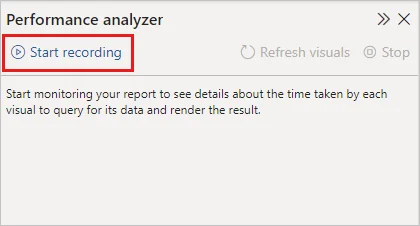
Start recording, then refresh visuals or interact with the report so captures the work each visual performs.
Read the timing category
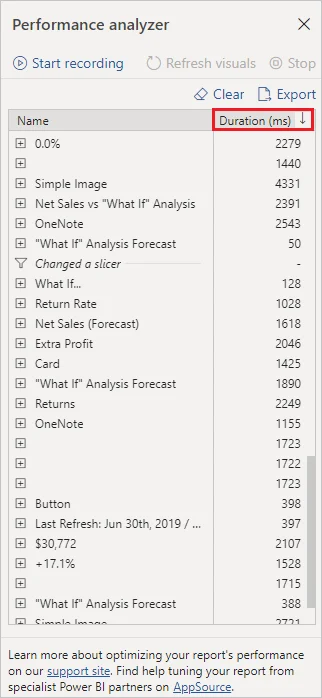
time points toward model or work. Direct query points toward external-source work. Visual display is rendering time. Other includes waiting and background work.
Inspect the query, not just the duration
Copy a visual's generated DAX query and inspect it in . That helps separate a slow calculation from a slow visual or data-source issue.
Optimize the category that is actually expensive rather than assuming every slow visual is a problem.
Exam clue: diagnose the timing category first, then choose the tuning tool.
Key points
- Record: captures report visual timings
- time: points to model or cost
- Visual display time: points to rendering cost
- Copy query: inspect the generated DAX query
Click an underlined term for a one-line explanation, or see them all in the glossary .
Exam trap
A slow visual does not automatically mean a slow ; inspect the timing category first.
Sources · 2 Microsoft Learn pages Show ▾
Checked on October 4, 2026. Report a problem
Go deeper on Microsoft Learn
Checked against Microsoft Learn on October 4, 2026. Report a problem with this card